الوضع الليلي


 5:35:47
  2019-08-18
  9364
9364
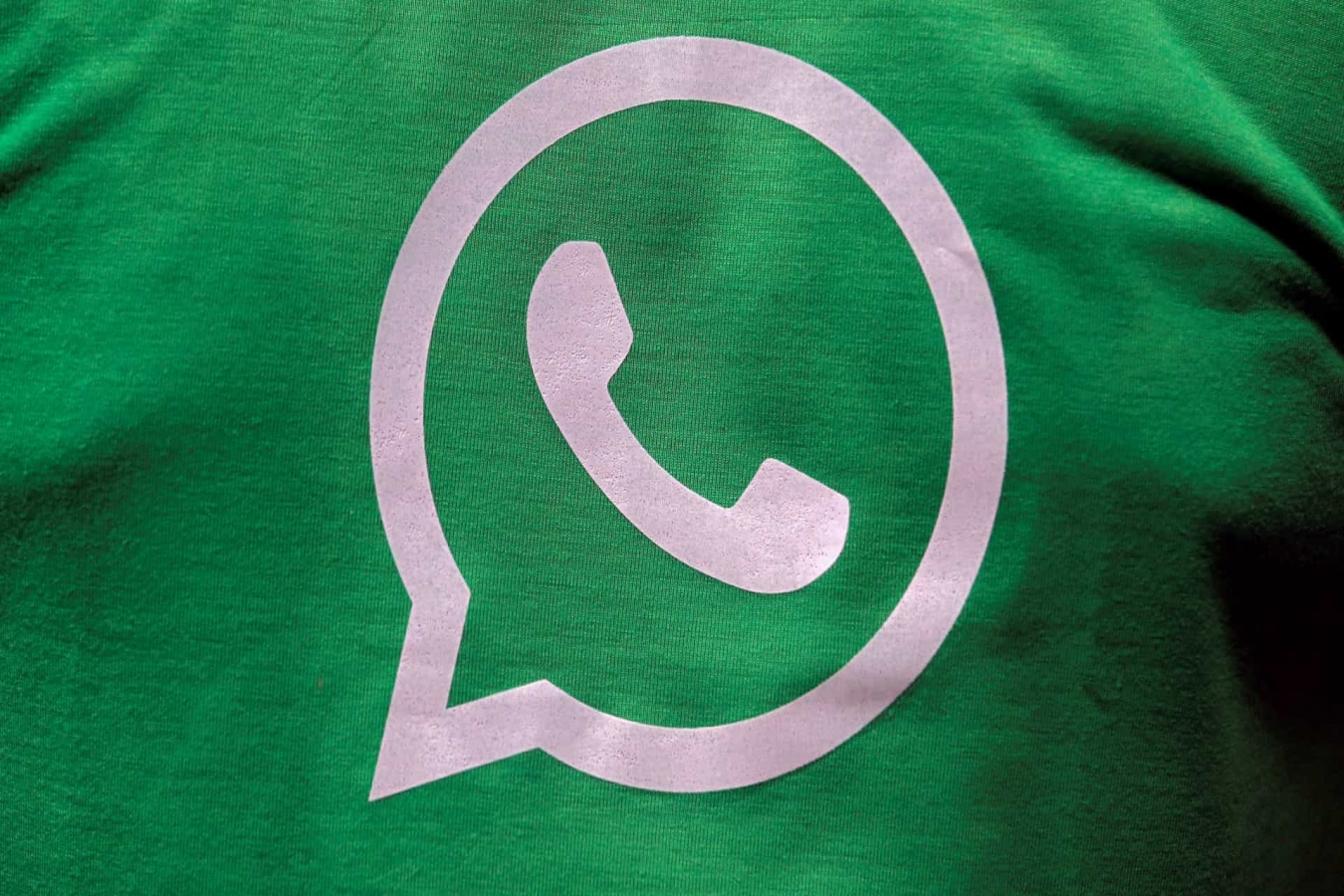
Have you ever accidentally deleted a WhatsApp chat and regretted it immediately? Wondering if there is a way to get it back? Worry not, we're here to help. We'll share a way to restore deleted WhatsApp chats and one method to bring back WhatsApp chats overwritten by an iCloud or Google Drive backup. Before trying out the steps, do keep in mind that you can only restore chats if the backup option had been turned on in the first place on WhatsApp. This means that if you had never done a backup of your chats, then you won't be able to recover any messages or chats that you accidentally delete.
Another thing we should point out is that we have tested these methods to restore deleted WhatsApp chats and they have worked for us but these methods involve uninstalling WhatsApp and restoring from the most recent backup. This could mean that you lose some messages that have arrived between the time of your last backup and when you accidentally deleted a chat. Whatever the case, proceed with extreme caution and follow these steps only if recovering the deleted WhatsApp messages is important enough to risk potentially losing some data. Gadgets 360 is not responsible for any loss of data so proceed at your own risk.
To turn on chat backup, open WhatsApp, go to Settings > go to Chats > tap on Chat backup. Over here, you can set up the frequency of your chat backup between never, daily, weekly or monthly, or you can even do a manual backup as well. Additionally, you'll have to select the Google account where you'd want the backup to be stored if you use an Android smartphone.
And if you're an iPhone user, go to Settings within WhatsApp > Chats > Chat Backup, where you can select the Auto Backup frequency or use Back Up Now to manually initiate a backup to iCloud.
Let's get started.
How to restore deleted WhatsApp chats
Here's how to restore deleted WhatsApp chats using various methods.
Restore deleted WhatsApp chats via cloud backup
If you have deleted chats accidentally, there's a chance that the chat was present on your cloud backup. Let's say your Google Drive or iCloud backup took place at midnight and in the morning you accidentally deleted a chat. The cloud backup still has the chat and you can restore it. Here's how:
Restoring deleted WhatsApp chats via Android's local backup
Another way to try restoring deleted WhatsApp chats is to recover them from local backups on your Android phone. This method does not work on iOS. If your Google Drive backup has overwritten the deleted messages, then follow these steps.
So, these are the two methods which you can use in a situation where you have accidentally deleted your WhatsApp chats or in a situation where you have freshly installed WhatsApp and want your old chats back. Either way, as we mentioned above, you need to have the chat backup option turned on in order to restore any messages.
Reality Of Islam |
|

Keeping sil
Two experim
Changing a
Plants are
 9:3:43
2018-11-05
9:3:43
2018-11-05
10 benefits of Marriage in Islam
7:5:22
2019-04-08
benefits of reciting surat yunus, hud &
9:45:7
2018-12-24
advantages & disadvantages of divorce
11:35:12
2018-06-10
6:0:51
2018-10-16
12:47:1
2022-12-20
8:25:12
2022-03-09
1:34:8
2022-02-01
3:42:22
2021-12-24
3:18:29
2022-12-24
7:59:14
2018-06-21
4:2:19
2022-10-10
5:41:46
2023-03-18
| LATEST |
 HOME
HOME